Common Blue Screen Errors and How to Fix Them
Blue screen errors, also known as stop errors or bug checks, occur when the Windows operating system encounters a condition that forces it to halt all operations. These interruptions are designed to prevent further system damage and provide information about the underlying issue. While the appearance of a blue screen can be unsettling, the stop code displayed often points toward specific categories of problems, such as driver conflicts, hardware faults, or memory corruption.
Troubleshooting blue screen errors typically involves examining the stop code, reviewing system logs, and testing components methodically. Because the root cause can vary from software incompatibility to failing hardware, a structured approach helps narrow down possibilities. The following sections discuss several frequent stop codes and describe the steps that may be taken to address each situation.
Understanding Stop Codes and Bug Check Information
Every blue screen error includes a hexadecimal stop code, such as 0x0000001A or 0x0000000A, along with a short text identifier like MEMORY_MANAGEMENT or DRIVER_IRQL_NOT_LESS_OR_EQUAL. This code provides a starting point for diagnosis. Additionally, Windows creates a minidump file that records the state of memory at the time of the crash. Analyzing these dump files with debugging tools or system utilities can reveal which driver or system process was involved.
For users who prefer a more guided approach, many operating systems offer built-in tools like the Windows Memory Diagnostic or the Reliability Monitor. TechWise recommends starting with these utilities, as they can automate some of the initial checks. Reviewing the Event Viewer logs for critical errors that precede the crash also adds context. The combination of stop code analysis and log review often suggests whether the issue is likely related to software, drivers, or hardware.
DRIVER_IRQL_NOT_LESS_OR_EQUAL
This stop code, often associated with bug check 0x0000000A, indicates that a kernel-mode driver attempted to access a memory address while using an incorrect interrupt request level (IRQL). Common causes include outdated or incompatible drivers, particularly for network adapters, graphics cards, or storage controllers. Faulty system services or antivirus software can also trigger this error.
One approach is to update all drivers, especially those for recently installed hardware. Device Manager provides a way to check driver versions and search for updates. Alternatively, downloading the latest drivers directly from the hardware manufacturer’s website may yield more recent versions. If the error began after installing new software or a Windows update, rolling back the driver or uninstalling the update can be helpful. Running a system file checker scan (sfc /scannow) from an elevated command prompt may repair corrupted system files that contribute to the conflict.
When the problem persists, disabling driver verifier or testing the system in Safe Mode can isolate the problematic driver. TechWise suggests temporarily removing non-essential hardware devices to see if the error stops. If it does, reconnecting devices one at a time may identify the culprit.
PAGE_FAULT_IN_NONPAGED_AREA
This error, corresponding to bug check 0x00000050, occurs when the system tries to access memory that is not available. Typically, it points to issues with physical memory (RAM), a failing hard drive, or a corrupted driver that incorrectly references memory. The error can also appear after installing incompatible software or upgrading hardware.
Diagnosing this stop code often begins with memory testing. Windows includes the Windows Memory Diagnostic tool, which runs a series of tests after a restart. If errors are detected, replacing the faulty RAM module may resolve the issue. Checking the hard drive for errors using the chkdsk command can uncover bad sectors or file system corruption. For solid-state drives, running the manufacturer’s diagnostic tool provides more specific information.
Driver updates are also relevant here, particularly for storage controllers and chipset drivers. If the error appears during certain applications, updating those programs or reinstalling them may help. System restore points that predate the first occurrence of the error can be used to revert the system configuration to a state where the issue was not present.
SYSTEM_SERVICE_EXCEPTION
Bug check 0x0000003B, known as SYSTEM_SERVICE_EXCEPTION, is triggered when an exception occurs during the execution of a system service routine. This often points to driver issues, especially graphics drivers, or to problems with antivirus software and system files. Malware infections can also lead to this stop code by altering critical system processes.
One of the first steps is to update the graphics driver to the latest stable version. Using a tool to perform a clean driver installation can remove leftover files from previous versions. Running a full system antivirus scan with an updated security program helps rule out malware. The system file checker (sfc /scannow) combined with the Deployment Image Servicing and Management tool (DISM /Online /Cleanup-Image /RestoreHealth) can repair underlying system corruption.
If the error occurs after installing new software, uninstalling that software in Safe Mode may eliminate the conflict. Adjusting virtual memory settings or increasing the size of the paging file has also been noted to help in some cases, though this should be considered after other steps fail.
CRITICAL_PROCESS_DIED
This stop code, bug check 0x000000EF, indicates that a critical system process has unexpectedly terminated. The cause can range from corrupt system files and driver conflicts to failing hardware, particularly storage devices. Because the operating system relies on these processes for core functionality, the crash forces a halt.
Troubleshooting begins by checking the health of the primary storage drive. Running chkdsk or the drive manufacturer’s diagnostic tool may reveal bad sectors or impending failure. If the drive is healthy, performing a startup repair from Windows recovery environment might restore missing system files. Restoring the system to an earlier restore point can reverse recent changes that may have destabilized the process.
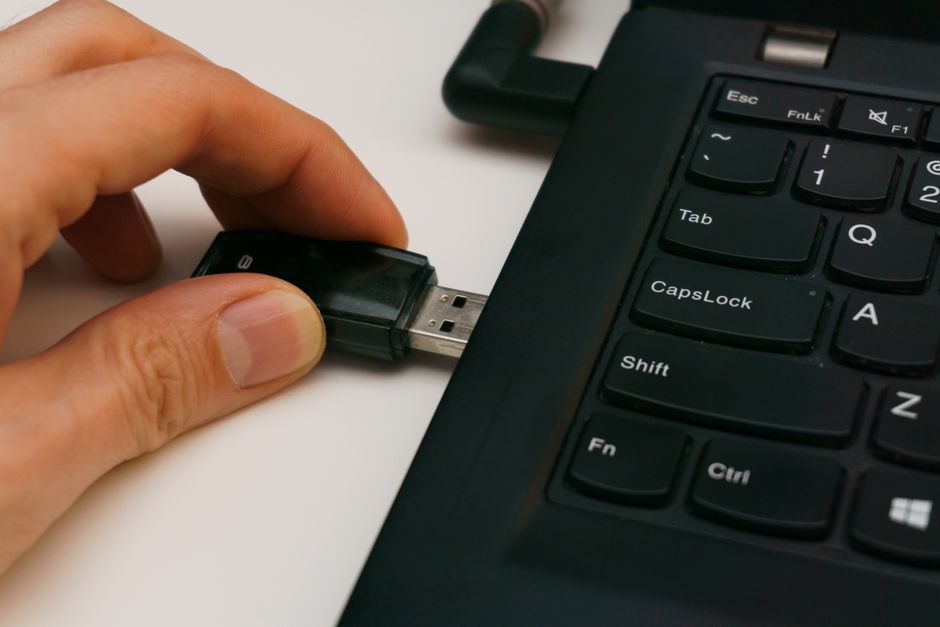
Driver updates, especially for storage controllers and chipset drivers, are worth pursuing. In some cases, the error can arise from a corrupted user profile. Creating a new user account and transferring data may circumvent the issue. If the hardware is suspect, testing with a different drive or temporarily using a bootable USB drive can help determine whether the original drive is failing.
General Troubleshooting Approaches
Beyond specific stop codes, several overarching strategies apply to most blue screen errors. Keeping the operating system and all drivers up to date reduces the likelihood of compatibility issues. Using the Windows Update tool or the manufacturer’s update utilities can streamline this process. Additionally, reviewing recent hardware or software changes provides clues about when the problem began.
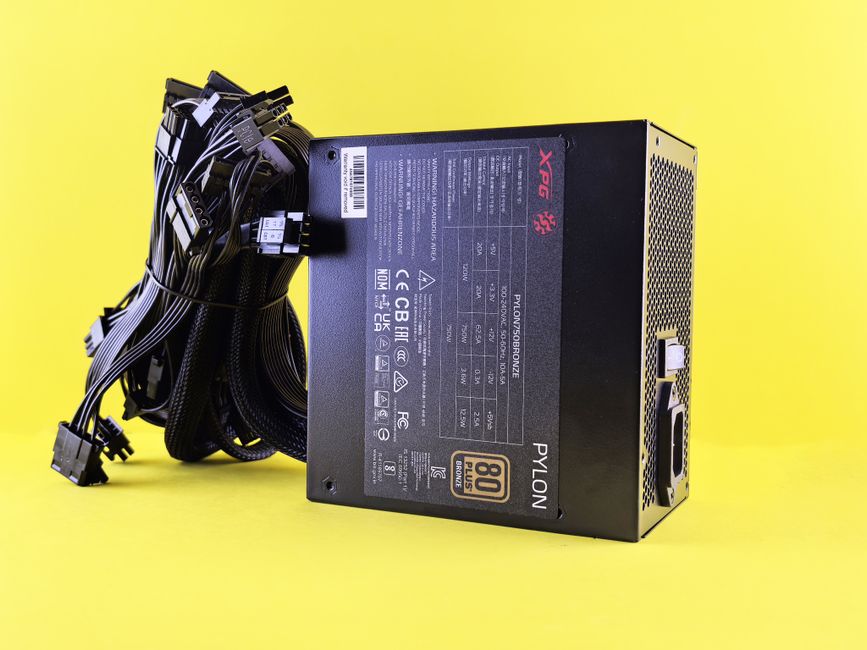
Running hardware diagnostics is a prudent step when software-based solutions do not resolve the error. Memory tests, hard drive scans, and checks on the power supply unit can identify failing components. Overheating can also cause system instability, so ensuring proper ventilation and cleaning dust from internal fans may be necessary. TechWise recommends maintaining a log of error occurrences and their context, as patterns can emerge over time.
If the blue screen persists despite these steps, consulting professional support or online communities that focus on debugging stop codes may offer more targeted advice. Because each system configuration is unique, the exact combination of software and hardware variables influences the appropriate solution. No single fix applies to every situation, and results depend on accurately identifying the underlying cause.